
Why Your Profile Matters
Your company profile is the foundation of KimonBids tender matching. The more accurately you describe your business -- your sectors, capabilities, certifications, and size -- the better the system can identify relevant opportunities and filter out irrelevant ones.
A complete profile typically increases match quality significantly compared to a default setup. It also makes it easier to pre-populate bid sections with company information.
Accessing Your Profile
Navigate to Profile from the main navigation. The Profile page has several sections:
- Company Information
- Sectors and CPV Codes
- Certifications and Accreditations
- Company Description
- Logo and Branding
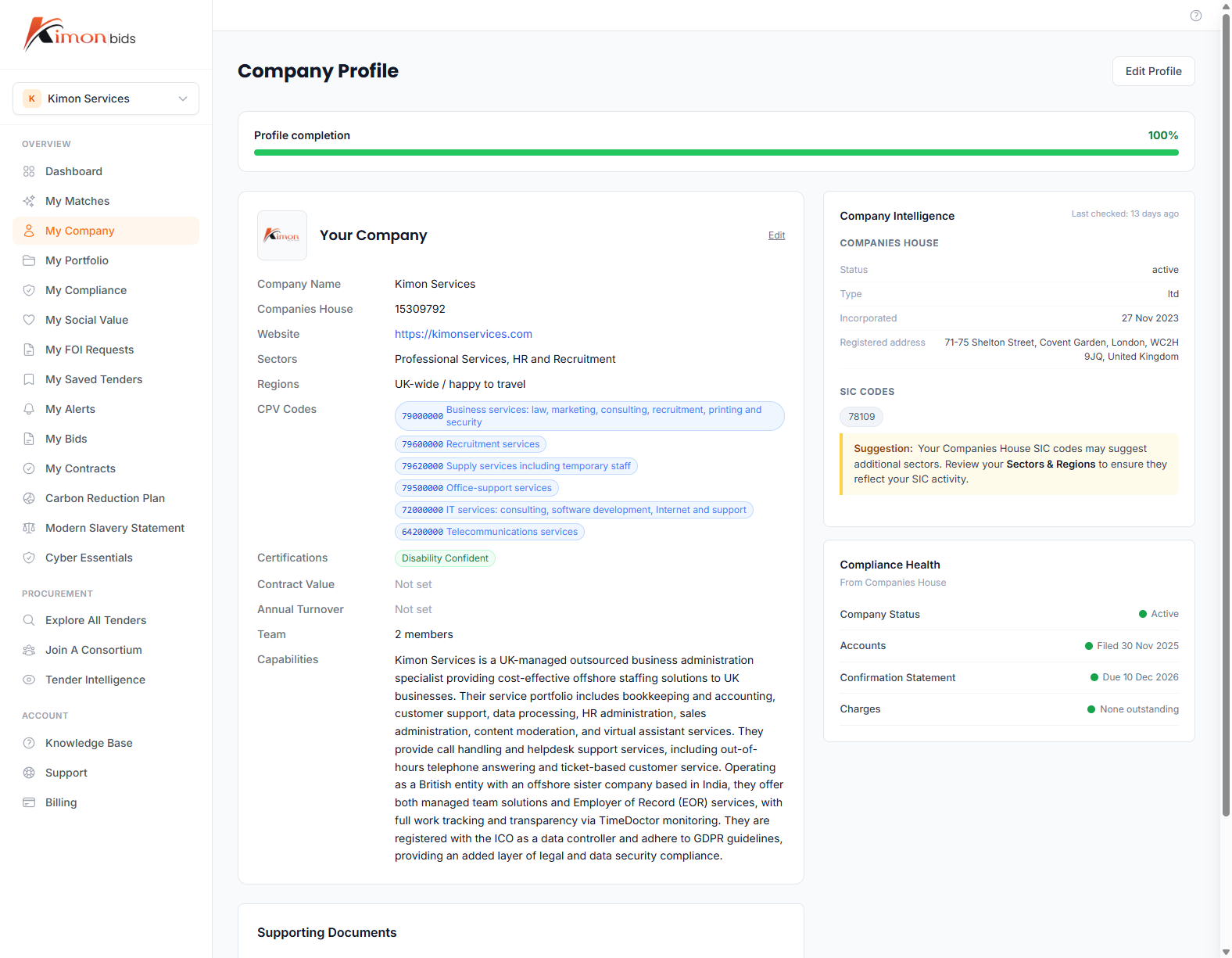
Company Information
Start with the basics:
Company Name -- Your registered trading name. This appears on bids and match results.
Company Number -- Your Companies House registration number (if applicable). KimonBids uses this to pull in financial data for benchmarking purposes.
Number of Employees -- Used for SME qualification scoring. Government procurement has specific thresholds (under 250 employees qualifies as an SME).
Annual Turnover -- Helps assess contract value suitability. Buyers often require turnover to be a multiple of contract value.
Region -- Your primary operating region. This affects geographic filtering on tenders. You can select multiple regions if you operate nationally or across several areas.
Sectors and CPV Codes
What are CPV Codes?
CPV (Common Procurement Vocabulary) codes are a European standard classification system used by all UK government buyers when publishing tenders. Each code represents a type of goods or services. For example:
72000000-- IT services71000000-- Architectural, construction, and engineering services85100000-- Health services
When a buyer publishes a tender, they tag it with relevant CPV codes. KimonBids uses these codes to match tenders to your business.
Selecting Your Sectors
First, choose the broad sectors your business operates in. KimonBids groups CPV codes into sectors to make selection easier. Common sectors include:
- Technology and Digital Services
- Construction and Facilities Management
- Professional Services
- Healthcare and Social Care
- Education and Training
- Environment and Sustainability
Select all sectors that describe the types of contracts you want to pursue -- not just your current work, but adjacent areas you could credibly bid for.
Adding Specific CPV Codes
After selecting sectors, you can add specific CPV codes to fine-tune matching. This is optional but improves accuracy for specialised businesses.
To add a CPV code:
- Click Add CPV Code in the Sectors and CPV Codes section
- Search by keyword (e.g. "cloud computing") or browse the hierarchy
- Select the most specific code that applies (e.g.
72212720 -- Cloud applications development services) - Add multiple codes if your business spans several specialisms
Tip: If KimonBids can derive CPV codes from your selected sectors, it will pre-populate them automatically. Review and adjust as needed.
How Many CPV Codes Should I Add?
For most SMEs, 5 to 15 CPV codes gives the best coverage without becoming too broad. Adding too many codes risks surfacing irrelevant opportunities. Adding too few may miss relevant contracts.
Focus on codes at the category or class level (8-digit codes) rather than the very broad division codes (2-digit codes) like 72000000 -- IT services. More specific codes give better results.
Certifications and Accreditations
Many government contracts require evidence of specific certifications. Recording these in your profile helps KimonBids:
- Surface tenders where your certifications are a competitive advantage
- Alert you before certificates expire
- Pre-populate compliance sections of bids
Supported certifications include:
- Cyber Essentials / Cyber Essentials Plus -- Required for contracts involving government IT systems
- ISO 27001 -- Information security management standard
- ISO 9001 -- Quality management standard
- ISO 14001 -- Environmental management standard
- G-Cloud / Digital Marketplace listing -- Framework agreements
- CHAS / Constructionline -- Construction industry standards
- Social Value accreditations -- Living Wage Foundation, B Corp, etc.
To add a certification:
- Go to the Certifications section of your profile
- Click Add Certification
- Select the certification type from the list
- Enter the certificate number and expiry date
- Upload a copy of the certificate (PDF or image)
Note: Keeping expiry dates accurate is important. KimonBids will alert you when a certification is approaching renewal, helping you avoid submitting bids without valid accreditation.
Company Description
The company description is used in two ways:
- AI bid generation context -- When generating bid sections, the AI uses your company description to add relevant company background
- Profile matching signals -- Keywords in your description supplement CPV codes for matching
Write a concise description (100-300 words) covering:
- What your business does
- Key capabilities and specialisms
- Notable clients or sectors served
- Any social value credentials
Avoid generic phrases like "leading provider" or "high-quality solutions". Be specific: "We deliver cloud infrastructure migration projects for NHS trusts and local authorities, specialising in secure environments with Cyber Essentials Plus certification."
Logo Upload
Uploading your company logo helps with:
- Professional presentation in the app
- Logo inclusion in bid documents (where supported)
Accepted formats: PNG, JPG, SVG. Recommended size: at least 200x200 pixels. The logo should have a transparent or white background for best display across different contexts.
Profile Completion Score
KimonBids shows a profile completion indicator. Aim for 100% completion to get the best match quality. Incomplete sections are highlighted so you can identify what still needs filling in.
The sections that contribute most to match accuracy are:
- Sectors and CPV Codes (40%)
- Company Description (25%)
- Certifications (20%)
- Company Size (employee count, turnover) (15%)
Saving Your Profile
Changes to your profile are saved section by section. Click Save after completing each section. You do not need to fill everything in at once -- return to incomplete sections at any time.
After saving, KimonBids will re-rank your tender matches using the updated profile within a few minutes.